Angular Documentation
A comprehensive guide to understanding and working with the Angular framework.
Angular Documentation
Welcome to the Angular documentation. This guide will help you understand and work with Angular framework.
Table of Contents
Overview
Angular is a platform and framework for building single-page client applications using HTML and TypeScript. Angular is written in TypeScript. It implements core and optional functionality as a set of TypeScript libraries that you import into your applications.
Overview (5 minutes)
What is Angular?
A front-end framework developed by Google for building dynamic web applications (SPA - Single Page Application).
Key Difference
Angular (2+) is a complete rewrite and fundamentally different from AngularJS (1.x). It’s built with TypeScript and offers improved performance, better dependency injection, and more intuitive component architecture.
Basic Setup
- Node.js installation required
- npm (Node Package Manager)
- Angular CLI installation:
npm install -g @angular/cli - Create new project:
ng new
Evaluation Question
“What’s an SPA? Can anyone explain?”
Architecture
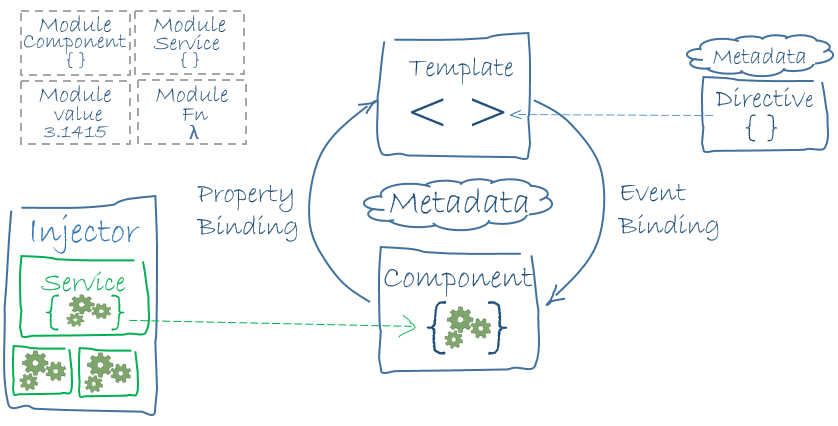
Key Features
- Component-Based Architecture: Build encapsulated components that manage their own templates and logic
- Modern Tools: Use modern tools for development, testing, and deployment
- Performance: Fast rendering and deep optimization capabilities
- Full Development Story: Everything you need to build complex applications
Prerequisites
- Node.js (version 16.x or higher)
- npm (Node Package Manager)
- Basic knowledge of HTML, CSS, and JavaScript/TypeScript
Getting Help
For detailed information about each topic, please follow the links in the Table of Contents.
1 - Getting Started
Overview about Angular
Getting Started with Angular
Overview (5 minutes)
What is Angular?
Angular is a powerful front-end framework developed by Google for building dynamic web applications, specifically Single Page Applications (SPAs). It provides a comprehensive solution for:
- Building scalable web applications
- Creating reusable UI components
- Managing application state
- Handling routing and navigation
- Form handling and validation
Key Differences: Angular vs AngularJS
Angular (2+) represents a complete reimagining of the original AngularJS framework:
| Feature | Angular (2+) | AngularJS (1.x) |
|---|
| Language | TypeScript | JavaScript |
| Architecture | Component-based | MVC |
| Mobile Support | Yes | Limited |
| Performance | Improved | Basic |
| Learning Curve | Moderate | Steep |
Basic Setup Requirements
Node.js
- Download from nodejs.org
- Recommended version: 16.x or higher
- Includes npm (Node Package Manager)
Angular CLI
npm install -g @angular/cli
Create New Project
ng new my-app
cd my-app
ng serve
Playground
View the Playground
Understanding SPAs
A Single Page Application (SPA) is a web application that:
- Loads a single HTML page
- Dynamically updates content without full page reloads
- Provides a more fluid user experience
- Reduces server load by only requesting data, not entire pages
Benefits of SPAs:
- Faster user experience after initial load
- Reduced server load
- Better caching capabilities
- More app-like feel
Common Questions
Q: “What’s an SPA? Can anyone explain?”
A: An SPA is a web application that operates within a single page, dynamically rewriting the current page rather than loading entire new pages from the server.
Next Steps
2 - Components
What is component and how does it work
Components (10 minutes)
Components: The Building Blocks
Components are the fundamental building blocks of Angular applications. Each component consists of:
- A TypeScript class with the
@Component decorator - An HTML template defining the UI
- CSS styles specific to the component
Creating a Component
Checking on Playround: ng-002 | Basic Component
Using Angular CLI:
ng generate component hello-world
# or shorter version
ng g c hello-world
This creates:
hello-world/
├── hello-world.component.ts
├── hello-world.component.html
├── hello-world.component.css
└── hello-world.component.spec.ts
Basic Component Example
// hello-world.component.ts
import { Component } from '@angular/core';

@Component({
  selector: 'app-hello-world',
  template: `
    <h1>{{ greeting }}</h1>
    <button (click)="changeGreeting()">Change Greeting</button>
  `,
  styles: [`
    h1 { color: blue; }
  `]
})
export class HelloWorldComponent {
  greeting = 'Hello, World!';

  changeGreeting() {
    this.greeting = 'Hello, Angular!';
  }
}
Component Interaction
Checking on Playround: ng-002 | Parent Component
Use @Input decorator to pass data from parent to child components:
// child.component.ts
import { Component, Input } from '@angular/core';

@Component({
  selector: 'app-child',
  template: `
    <h2>Hello, {{name}}!</h2>
    <button (click)="onClick()">Click me</button>
  `
})
export class ChildComponent {
  @Input() name: string = '';  // Receive name from parent

  onClick() {
    this.buttonClicked.emit(`Button clicked by ${this.name}`);
  }
}

// parent.component.ts
@Component({
  selector: 'app-parent',
  template: `
    <h1>Parent Component</h1>
    <app-child
      [name]="parentName"
      (buttonClicked)="handleClick($event)">
    </app-child>
  `
})
export class ParentComponent {
  parentName = 'John';  // Data to send to child

  handleClick(message: string) {
    console.log(message);  // Logs: "Button clicked by John"
  }
}
Child to Parent (@Output)
Use @Output decorator with EventEmitter to send data from child to parent:
// child.component.ts
import { Component, Input, Output, EventEmitter } from '@angular/core';

@Component({
  selector: 'app-child',
  template: `
    <h2>Hello, {{name}}!</h2>
    <button (click)="onClick()">Click me</button>
  `
})
export class ChildComponent {
  @Input() name: string = '';
  @Output() buttonClicked = new EventEmitter<string>();

  onClick() {
    this.buttonClicked.emit(`Button clicked by ${this.name}`);
  }
}
Complete Example
Here’s a practical example combining both @Input and @Output:
// message.interface.ts
interface Message {
  text: string;
  sender: string;
  timestamp: Date;
}

// message.component.ts
@Component({
  selector: 'app-message',
  template: `
    <div class="message">
      <h3>From: {{name}}</h3>
      <input [(ngModel)]="messageText">
      <button (click)="sendMessage()">Send</button>
    </div>
  `
})
export class MessageComponent {
  @Input() name: string = '';
  @Output() messageSent = new EventEmitter<Message>();

  messageText = '';

  sendMessage() {
    this.messageSent.emit({
      text: this.messageText,
      sender: this.name,
      timestamp: new Date()
    });
    this.messageText = '';
  }
}

// chat.component.ts
@Component({
  selector: 'app-chat',
  template: `
    <app-message
      [name]="userName"
      (messageSent)="handleMessage($event)">
    </app-message>
    <div class="message-list">
      <div *ngFor="let msg of messages">
        {{msg.sender}}: {{msg.text}}
        <small>{{msg.timestamp | date:'short'}}</small>
      </div>
    </div>
  `
})
export class ChatComponent {
  userName = 'John';
  messages: Message[] = [];

  handleMessage(message: Message) {
    this.messages.push(message);
  }
}
Best Practices
- Use meaningful names for @Input and @Output properties
- Keep component communication simple and predictable
- Document complex interactions
- Use TypeScript interfaces for complex data structures
- Handle edge cases and errors in component communication
- Consider using services for complex state management between components
3 - Data Binding
Basic data binding
Data Binding in Angular
Types of Data Binding
Angular provides several ways to bind data between your component’s TypeScript code and the HTML template.
Playground
1. One-way Binding
Data flows in one direction: from the component to the view (HTML).
Interpolation {{ }}
Displays component data in the view:
// component.ts
export class GreetingComponent {
  name = 'John';
}
<!-- template.html -->
<h1>Hello, {{name}}!</h1>
Property Binding [ ]
Binds a component property to an element property:
// component.ts
export class ButtonComponent {
  isDisabled = true;
  imageUrl = 'path/to/image.jpg';
}
<!-- template.html -->
<button [disabled]="isDisabled">Click me</button>
<img [src]="imageUrl" [alt]="'Profile image'">
2. Two-way Binding [( )]
Synchronizes data in both directions between the component and view.
Using ngModel
First, import FormsModule in your module:
// app.module.ts
import { FormsModule } from '@angular/forms';

@NgModule({
  imports: [
    BrowserModule,
    FormsModule  // Add this
  ],
  // ...
})
export class AppModule { }
Then use [(ngModel)] in your component:
// component.ts
export class NameComponent {
  name = '';
}
<!-- template.html -->
<input [(ngModel)]="name">
<p>Hello, {{name}}!</p>
Complete Example
Here’s a working example combining different types of binding:
// name-editor.component.ts
import { Component } from '@angular/core';

@Component({
  selector: 'app-name-editor',
  template: `
    <div>
      <label>Name: </label>
      <!-- Two-way binding -->
      <input [(ngModel)]="name">

      <!-- One-way binding with interpolation -->
      <p>Hello, {{name}}!</p>

      <!-- Property binding -->
      <button [disabled]="!name">Clear</button>

      <!-- Event binding -->
      <button (click)="resetName()">Reset</button>
    </div>
  `
})
export class NameEditorComponent {
  name = '';

  resetName() {
    this.name = '';
  }
}
Evaluation Question
Q: “How do you change an input value without ngModel?”
A: You can use a combination of property binding and event binding (also known as “banana in a box” syntax):
// component.ts
export class ManualBindingComponent {
  name = '';

  onNameChange(event: any) {
    this.name = event.target.value;
  }
}
<!-- template.html -->
<input [value]="name" (input)="onNameChange($event)">
<p>Hello, {{name}}!</p>
This approach:
- Uses [value] to bind the component property to the input
- Uses (input) event to update the component property when the user types
- Gives you more control over the input handling
- Doesn’t require FormsModule
Best Practices
- Use interpolation {{ }} for text content
- Use property binding [ ] for element properties
- Use [(ngModel)] for form inputs when two-way binding is needed
- Consider manual binding for more control or when FormsModule isn’t available
- Always validate and sanitize user input when using two-way binding
4 - Modules
Basic modules, recommendation
Components (10 minutes)
Modules: Code Organization
Modules in Angular help organize related code into cohesive blocks of functionality. They are decorated with @NgModule.
Module Structure
// app.module.ts
import { NgModule } from '@angular/core';
import { BrowserModule } from '@angular/platform-browser';
import { AppComponent } from './app.component';
import { HelloWorldComponent } from './hello-world/hello-world.component';

@NgModule({
  declarations: [
    AppComponent,
    HelloWorldComponent    // Components must be declared in a module
  ],
  imports: [
    BrowserModule         // Other modules we want to use
  ],
  providers: [],          // Services for dependency injection
  bootstrap: [AppComponent] // Root component to start with
})
export class AppModule { }
Key Module Concepts
- Declarations: List of components, directives, and pipes that belong to this module
- Imports: Other modules that this module needs
- Providers: Services that will be available to the entire application
- Bootstrap: The main application view (root component)
Feature Modules
For better organization, you can create feature modules:
ng generate module feature-name
Example structure:
@NgModule({
  declarations: [FeatureComponent],
  imports: [
    CommonModule,
    FeatureRoutingModule
  ],
  exports: [FeatureComponent]  // Make components available to other modules
})
export class FeatureModule { }
Evaluation Question
Q: “To add a new page, do you create a component or a module? Why?”
A: The answer depends on your needs:
- Create a Component if you’re adding a single new page/view
- Create a Module if you’re adding a feature with multiple related components, services, and routes
Best practices:
- Components for individual pages/features
- Modules for grouping related functionality
- Feature modules for lazy loading and better organization
Common Patterns
- Shared Module: For commonly used components, directives, and pipes
- Core Module: For singleton services and single-load components
- Feature Modules: For distinct features of your application
- Routing Modules: For managing navigation between pages
5 - Dependency Injection
Basic Dependency Injection, singleton pattern and reuseable
Dependency Injection (DI) in Angular
What is Dependency Injection?
Dependency Injection (DI) is a design pattern where classes receive their dependencies from an external source rather than creating them internally. In Angular, the DI system provides and manages dependencies across your application.
Basic Service Example
Here’s a simple service that manages a list of Fresher names:
// fresher.service.ts
import { Injectable } from '@angular/core';

@Injectable({
  providedIn: 'root'  // Makes this a singleton service
})
export class FresherService {
  private freshers: string[] = [
    'John Doe',
    'Jane Smith',
    'Mike Johnson'
  ];

  getFreshers(): string[] {
    return this.freshers;
  }

  addFresher(name: string) {
    this.freshers.push(name);
  }
}
Using the Service in Components
// fresher-list.component.ts
import { Component, OnInit } from '@angular/core';
import { FresherService } from './fresher.service';

@Component({
  selector: 'app-fresher-list',
  template: `
    <h2>Fresher List</h2>
    <ul>
      <li *ngFor="let fresher of freshers">
        {{ fresher }}
      </li>
    </ul>
    <button (click)="addNewFresher()">Add Fresher</button>
  `
})
export class FresherListComponent implements OnInit {
  freshers: string[] = [];

  constructor(private fresherService: FresherService) {}

  ngOnInit() {
    this.freshers = this.fresherService.getFreshers();
  }

  addNewFresher() {
    this.fresherService.addFresher('New Fresher');
    this.freshers = this.fresherService.getFreshers();
  }
}
Service with HTTP Example
Here’s a more realistic example using HttpClient:
// fresher.interface.ts
interface Fresher {
  id: number;
  name: string;
  email: string;
}

// fresher.service.ts
import { Injectable } from '@angular/core';
import { HttpClient } from '@angular/common/http';
import { Observable } from 'rxjs';

@Injectable({
  providedIn: 'root'
})
export class FresherService {
  private apiUrl = 'api/freshers';

  constructor(private http: HttpClient) {}

  getFreshers(): Observable<Fresher[]> {
    return this.http.get<Fresher[]>(this.apiUrl);
  }

  addFresher(fresher: Fresher): Observable<Fresher> {
    return this.http.post<Fresher>(this.apiUrl, fresher);
  }
}
DI Providers
There are different ways to provide services in Angular:
- Root-level Provider (Singleton):
@Injectable({
  providedIn: 'root'
})
- Module-level Provider:
@NgModule({
  providers: [FresherService]
})
- Component-level Provider:
@Component({
  providers: [FresherService]  // New instance for this component
})
Best Practices
- Use providedIn: ‘root’ for singleton services
@Injectable({
  providedIn: 'root'
})
- Implement OnDestroy for cleanup:
export class MyService implements OnDestroy {
  ngOnDestroy() {
    // Cleanup code
  }
}
- Use Interfaces for better type safety:
interface ServiceConfig {
  apiUrl: string;
  timeout: number;
}

@Injectable({providedIn: 'root'})
class MyService {
  constructor(@Inject('CONFIG') private config: ServiceConfig) {}
}
- Lazy Loading with feature modules:
@Injectable({
  providedIn: 'any'  // New instance per lazy-loaded module
})
Common Use Cases
- Data Services: Managing application data
@Injectable({providedIn: 'root'})
export class DataService {
  private data: any[] = [];

  getData() { return this.data; }
  addData(item: any) { this.data.push(item); }
}
- State Management: Managing application state
@Injectable({providedIn: 'root'})
export class StateService {
  private state = new BehaviorSubject<any>(initialState);
  state$ = this.state.asObservable();

  updateState(newState: any) {
    this.state.next(newState);
  }
}
- Utility Services: Shared functionality
@Injectable({providedIn: 'root'})
export class UtilityService {
  formatDate(date: Date): string {
    return date.toLocaleDateString();
  }

  generateId(): string {
    return Math.random().toString(36).substr(2, 9);
  }
}
Testing with DI
describe('FresherComponent', () => {
  let component: FresherComponent;
  let service: FresherService;

  beforeEach(() => {
    TestBed.configureTestingModule({
      declarations: [FresherComponent],
      providers: [FresherService]
    });

    component = TestBed.createComponent(FresherComponent).componentInstance;
    service = TestBed.inject(FresherService);
  });

  it('should load freshers', () => {
    const mockFreshers = ['John', 'Jane'];
    spyOn(service, 'getFreshers').and.returnValue(mockFreshers);

    component.ngOnInit();
    expect(component.freshers).toEqual(mockFreshers);
  });
});
6 - Forms
Basic form data management
Reactive Forms provide a model-driven approach to handling form inputs and validation. They are more robust, scalable, and testable than template-driven forms.
Setup
First, import ReactiveFormsModule in your module:
// app.module.ts
import { ReactiveFormsModule } from '@angular/forms';

@NgModule({
  imports: [
    BrowserModule,
    ReactiveFormsModule  // Add this
  ],
  // ...
})
export class AppModule { }
Basic Example
Here’s a simple form with a “Name” input that logs to console on submit:
// name-form.component.ts
import { Component } from '@angular/core';
import { FormGroup, FormControl } from '@angular/forms';

@Component({
  selector: 'app-name-form',
  template: `
    <form [formGroup]="form" (ngSubmit)="onSubmit()">
      <div>
        <label for="name">Name:</label>
        <input id="name" type="text" formControlName="name">
      </div>
      <button type="submit">Submit</button>
    </form>
  `
})
export class NameFormComponent {
  form = new FormGroup({
    name: new FormControl('')  // Initialize with empty string
  });

  onSubmit() {
    console.log(this.form.value);  // Logs: { name: 'whatever user typed' }
  }
}
- Model-driven approach
- More scalable for complex forms
- Better for form validation
- Easier to test
- Synchronous data flow
- Better type safety
- Simpler for basic forms
- Similar to AngularJS
- Asynchronous data flow
- More magical (less explicit)
To add more fields, simply add new FormControl instances to your FormGroup:
form = new FormGroup({
  name: new FormControl(''),
  email: new FormControl('')  // Adding email field
});
Corresponding template:
<form [formGroup]="form" (ngSubmit)="onSubmit()">
  <div>
    <label for="name">Name:</label>
    <input id="name" type="text" formControlName="name">
  </div>
  <div>
    <label for="email">Email:</label>
    <input id="email" type="email" formControlName="email">
  </div>
  <button type="submit">Submit</button>
</form>
You can add validators to your form controls:
import { Validators } from '@angular/forms';

form = new FormGroup({
  name: new FormControl('', Validators.required),
  email: new FormControl('', [
    Validators.required,
    Validators.email
  ])
});
Check validation status:
<div *ngIf="form.get('email')?.errors?.['required']">
  Email is required
</div>
<div *ngIf="form.get('email')?.errors?.['email']">
  Please enter a valid email
</div>
Evaluation Question
Q: “How do you add an ‘Email’ input to this form?”
A: To add an email input:
- Add the FormControl to your FormGroup:
form = new FormGroup({
  name: new FormControl(''),
  email: new FormControl('')  // Add this line
});
- Add the input to your template:
<div>
  <label for="email">Email:</label>
  <input id="email" type="email" formControlName="email">
</div>
- Optional: Add validation:
email: new FormControl('', [
  Validators.required,
  Validators.email
])
Best Practices
- Always use Reactive Forms for complex forms
- Group related fields using nested FormGroups
- Add proper validation with error messages
- Use typed forms (Angular 14+) for better type safety
- Handle form submission with proper error handling
- Use form builders for cleaner code:
constructor(private fb: FormBuilder) {
  this.form = this.fb.group({
    name: [''],
    email: ['']
  });
}
7 - Routing
Basic Routing
Angular Routing
Basic Routing Concepts
Angular Router enables navigation between views without page reloads, creating a smoother user experience.
Setup
- Configure routes in a routing module:
// app-routing.module.ts
import { NgModule } from '@angular/core';
import { RouterModule, Routes } from '@angular/router';
import { HomeComponent } from './home/home.component';
import { FormPageComponent } from './form-page/form-page.component';

const routes: Routes = [
  { path: '', component: HomeComponent },
  { path: 'form', component: FormPageComponent },
  { path: '**', redirectTo: '' }  // Wildcard route for 404
];

@NgModule({
  imports: [RouterModule.forRoot(routes)],
  exports: [RouterModule]
})
export class AppRoutingModule { }
- Add router outlet to your main app component:
<!-- app.component.html -->
<nav>
  <a routerLink="/">Home</a>
  <a routerLink="/form">Form Page</a>
</nav>

<router-outlet></router-outlet>
Example: Home and Form Page Navigation
Components Setup
// home.component.ts
@Component({
  selector: 'app-home',
  template: '<h1>Welcome Home!</h1>'
})
export class HomeComponent { }

// form-page.component.ts
@Component({
  selector: 'app-form-page',
  template: '<h1>Form Page</h1>'
})
export class FormPageComponent { }
Navigation Methods
- Using RouterLink directive:
<a routerLink="/form">Go to Form</a>
- Programmatic navigation:
import { Router } from '@angular/router';

export class NavComponent {
  constructor(private router: Router) {}

  goToForm() {
    this.router.navigate(['/form']);
  }
}
Running Code on Route Changes
To execute code on every route change, use Router events:
// app.component.ts
import { Component } from '@angular/core';
import { Router, NavigationEnd } from '@angular/router';
import { filter } from 'rxjs/operators';

@Component({
  selector: 'app-root',
  template: '<router-outlet></router-outlet>'
})
export class AppComponent {
  constructor(private router: Router) {
    // Listen to route changes
    this.router.events.pipe(
      filter(event => event instanceof NavigationEnd)
    ).subscribe((event: NavigationEnd) => {
      console.log('Route changed to:', event.url);
      // Your code here
    });
  }
}
Using Route Guards
For more control over navigation:
// auth.guard.ts
import { Injectable } from '@angular/core';
import { CanActivate, Router } from '@angular/router';

@Injectable({
  providedIn: 'root'
})
export class AuthGuard implements CanActivate {
  constructor(private router: Router) {}

  canActivate(): boolean {
    // Your logic here
    return true;
  }
}
Apply guard to routes:
const routes: Routes = [
  {
    path: 'form',
    component: FormPageComponent,
    canActivate: [AuthGuard]
  }
];
Evaluation Question
Q: “How do you make a service run on every page change?”
A: There are several ways to run a service on page changes:
- Using Router Events in a Service:
@Injectable({
  providedIn: 'root'
})
export class RouteService {
  constructor(private router: Router) {
    this.router.events.pipe(
      filter(event => event instanceof NavigationEnd)
    ).subscribe(() => {
      this.onRouteChange();
    });
  }

  private onRouteChange() {
    // Your code here
    console.log('Route changed!');
  }
}
- Using Guards:
@Injectable({
  providedIn: 'root'
})
export class RouteGuard implements CanActivate {
  constructor(private myService: MyService) {}

  canActivate(): boolean {
    this.myService.doSomething();
    return true;
  }
}
Best Practices
- Always include a default route
- Handle 404 cases with a wildcard route
- Use route parameters for dynamic content
- Implement lazy loading for better performance
- Add route guards for protected routes
- Use route resolvers for data pre-fetching
- Consider using child routes for nested views